
Advertising / Host Editable Boxes
More powerful than you think!
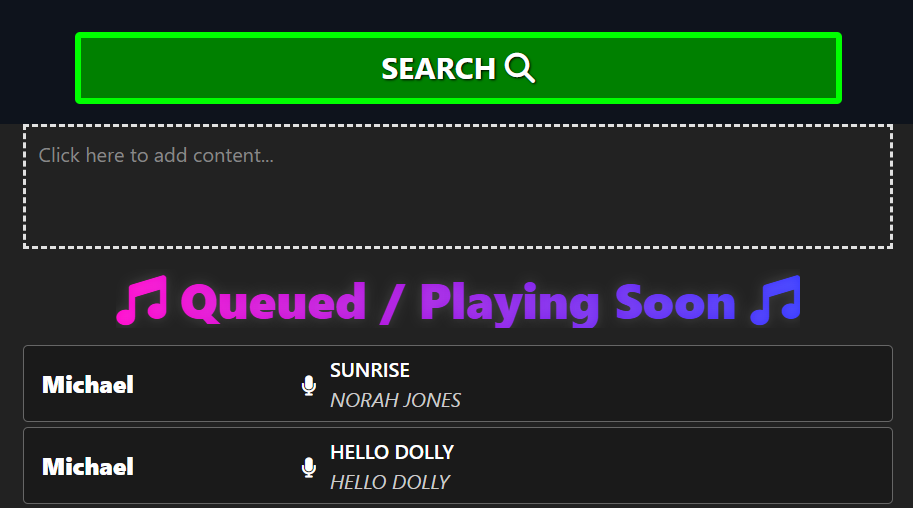
On nearly every page of your RequestSongs.co app you’ll see areas outlined with dashed borders. These are your host-only editable boxes. Guests never see the dashes — they only see your finished content. These boxes give you a powerful way to customize your page and connect with your audience.
How to Use Them
Click inside any dashed box and a full WYSIWYG editor (TinyMCE) will appear. Just type, format, and style your content like you would in Word or Google Docs. You can:
- Promote tipping and highlight your social links.
- Add announcements, house rules, or event details.
- Insert images, sponsor shout-outs, or links to your menu/website.
- Advertise upcoming events so your guests know what’s next.
When finished, click outside the box — your changes save automatically and update live for your guests.
Social Links & Settings
If you’d like your social media profiles, payment handles, or website to also appear in the menu system, make sure you enter them in your Settings (the slider icon in your dashboard menu) first. That way, your links are available both in the editable boxes and the app’s built-in navigation menus.
Important Rules
- It’s fine to offer guests alternative payment options (like Venmo or CashApp) in addition to our tipping system.
- Do not instruct guests to avoid or bypass in-app tipping unless you are on a paid plan. All content is subject to review to ensure fairness and compliance.
- Venues love seeing logos, menus, and professional links in these spaces — it makes your page more polished and engaging.
AI Instructions / template prompt
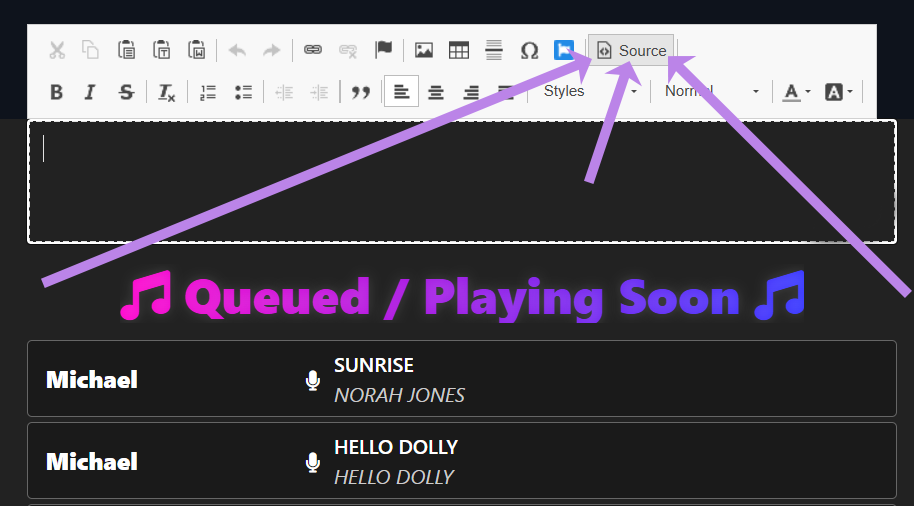
Click into the dashed area(s), then click the source button, then copy and paste the folling into an AI prompt for it to generate HTML code you can paste into the text area of the source button:
Instruction: Output a single, mobile-friendly HTML block for TinyMCE “Source”. No/, no scripts, no external CSS. Use inline styles only. Images must be responsive (max-width:100%; height:auto).
Include only:
– A centered venue logo image using {{VENUE_LOGO_URL}} (alt text: “Venue logo”).
– A primary button labeled “View Menu” linking to {{VENUE_MENU_URL}} (target=_blank, rel=noopener).
– Optional short note text below (hosts can edit later).
Style guidance (inline):
– Container: max-width:700px; margin:0 auto; padding:12px; line-height:1.5;
– Logo: max-width:180px; width:100%; height:auto; display:block; margin:0 auto 10px; border-radius:8px;
– Button: display:inline-block; padding:10px 14px; border:2px solid currentColor; border-radius:10px; text-decoration:none; font-weight:700;
The AI prompt above should return HTML you can copy and paste into the source area of the editor (click the source button pointed out above).
You might also want to save a copy of the HTML you use to a text file and save it somewhere on your computer so you can paste it back in weekly if you are doing recurring events. Currently, each ear only stores 1 version, and there is no option to rewind or save versions.
We do not currently provide support for this advanced option but you are also able to use the simple editor options.